What Is a No Sleep Page? (And How to Keep Your Screen Awake Online)
Learn what a no sleep page is, how web-based screen wake tools work without downloads, and how to prevent display timeouts on any device.
If you have ever needed your computer, tablet, or phone display to stay active without constantly touching the mouse or screen, you may have come across the term no sleep page.
A no sleep page (also called a *keep awake page* or *screen keeper website*) is a dedicated webpage designed to temporarily prevent a device's display from dimming, locking, or falling asleep.
Instead of changing your permanent operating system power settings or downloading third-party software, a no sleep page keeps your screen illuminated entirely inside your web browser.
Why People Use No Sleep Pages
Most operating systems are configured to turn off displays after 2 to 10 minutes of inactivity to save battery and extend backlight lifespan. While this is great for energy conservation, it causes major frustration during hands-free or passive tasks:
- Reading Long Documents: Studying dense research papers, PDF contracts, or code documentation without touching the keyboard.
- Cooking & Recipes: Keeping recipe instructions in view on a kitchen counter without touching the screen with messy hands.
- Presentations & Demonstrations: Preventing slide decks or speaker notes from going dark during live client meetings.
- Monitoring Live Dashboards: Keeping financial tickers, continuous integration builds, or server metrics visible.
- Workout Timers & Fitness: Following interval timers or yoga sequences without the phone sleeping mid-set.
- Managed Work Laptops: Keeping reference documents open on corporate laptops where IT policies lock down power settings.
How a No Sleep Page Works Behind the Scenes
Modern no sleep pages operate using the official W3C Screen Wake Lock API.
When you activate a wake lock on a compatible page, the browser issues a system request (called a *WakeLockSentinel*) to your operating system's display power manager. This tells the OS kernel to postpone automatic screen timeout while the webpage remains visible in the active browser tab.
The Modern API vs Legacy Workarounds
How to Use Keep Screen On (The Free Online No Sleep Page)
Keep Screen On is a free, modern no sleep page built with the official Screen Wake Lock standard.
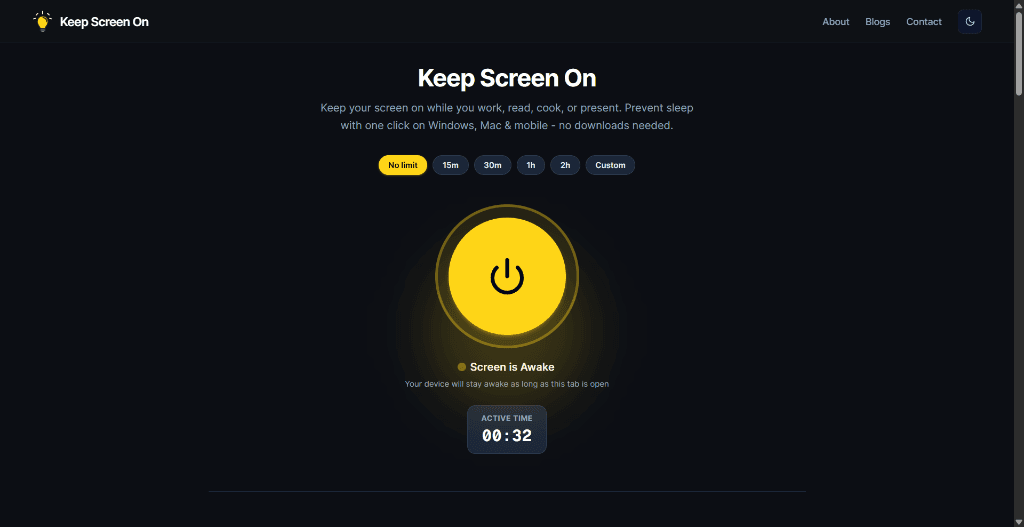
Quick steps to keep your screen awake:
- No limit: Keeps the screen on indefinitely until manually turned off.
- Preset Timers: Select *15m*, *30m*, *1h*, or *2h*.
- Custom: Set an exact minute timer for presentations or timed tasks.
No Sleep Page vs. Changing System Settings
| Feature | No Sleep Page (Keep Screen On) | Changing OS Power Settings |
|---|---|---|
| Installation Required | No (Runs in browser) | No |
| Admin Privileges Needed | No | Yes (Often blocked on work laptops) |
| Automatic Reset | Yes (Reverts when closed) | No (Easy to forget and drain battery) |
| Duration Timers | Yes (15m, 30m, 1h, custom) | Rare (Usually indefinite) |
| Cross-Device | Yes (Windows, Mac, iOS, Android) | Must configure each device separately |
Important Browser Limitations to Know
While no sleep pages are extremely convenient, keep these technical limitations in mind:
- Active Tab Visibility: Web browsers automatically suspend wake locks when a tab is minimized or hidden behind another full-screen window to conserve resources. Keep the tab open in a visible window.
- Low Power Mode / Battery Saver: On iPhones, iPads, and Android devices, system-wide extreme battery saver modes may throttle browser APIs.
- Physical Lock Overrides: Pressing your device's physical lock or power button will always lock the screen normally.
Frequently Asked Questions
Is using a no sleep page safe?
Yes. A modern no sleep page like Keep Screen On runs entirely client-side using standard web APIs. It does not install software, modify registry keys, or access private data.
Does a no sleep page drain battery?
An illuminated screen uses active display power. However, using duration timers (like 30 minutes or 1 hour) ensures your screen automatically goes to sleep once your task is complete, preventing overnight battery drain.
What happens when I close the no sleep page?
The wake lock Sentinel is instantly released by the browser. Your device immediately returns to its default system sleep and auto-lock schedule.
Can a no sleep page keep my computer awake during downloads?
A no sleep page keeps the display awake. While display wake locks often keep the operating system from entering full sleep, long background downloads or local processes may require system-level keep-awake settings if the browser is minimized.
Will a no sleep page work on my iPhone or iPad?
Yes. Apple Safari on iOS 16.4+ and iPadOS fully supports the Screen Wake Lock API used by Keep Screen On.
Related Guides & Articles
- How to Keep Your iPhone & iPad Screen On — iOS Auto-Lock settings, Low Power Mode overrides, and mobile wake locks.
- How to Keep Your Screen On in Windows 11 — Complete guide to Windows screen timeouts and PowerToys Awake.
- How to Keep Your Mac Screen From Sleeping — macOS Lock Screen settings, native
caffeinateCLI, and browser tools. - Keep Your Screen On While Working From Home — Stop aggressive corporate laptop timeouts safely.
Prevent your screen from dimming right now
Click once to activate browser-based screen wake lock. Free, instant, and works across all devices.