How to Keep Your Screen On in Windows 11
Learn how to keep your screen on in Windows 11, stop screen timeout, keep your PC awake, and choose the right Windows or browser solution.
If your Windows 11 screen turns off while you are reading, presenting, monitoring a dashboard, waiting for a build, or following a long process, the right fix depends on what you actually need to keep awake.
For a simple screen timeout problem, Windows already has a built-in setting. For a temporary system-level keep-awake session, Microsoft PowerToys Awake is useful. And when you only need the display to stay active for a temporary browser session, Keep Screen On gives you a no-install option without changing your normal Windows power settings.
First: screen off is not the same as PC sleep
Windows separates two related settings:
That difference matters. You can have a PC that stays awake while the display turns off, or change the screen timeout without changing the system sleep timeout.
If your goal is simply “do not let the display go dark while I am looking at it,” start with the screen timeout setting. If you need a local process to keep running while you step away, you may need to keep the computer awake instead.
Method 1: Change the Windows 11 screen timeout
For a built-in Windows solution, open:
Start → Settings → System → Power & battery → Screen, sleep, & hibernate timeouts
Microsoft documents these controls in its current Windows 11 power settings guide.
You will see separate choices for battery power and plugged-in use.
To keep the display on longer
For a desk setup where the laptop is connected to power, you can choose a longer plugged-in timeout. On battery, a shorter timeout is usually better for power consumption.
When this method is best
Use the Windows setting when you want a persistent change to how your PC behaves. It is also the simplest option when you do not need a separate timer for one specific session.
The downside is that the setting changes your normal Windows behavior. If you only need the screen awake for one presentation, reading session, or temporary task, a temporary solution can be more convenient.
Method 2: Keep the whole Windows 11 PC awake
Sometimes the display is not the real problem.
Suppose you start a long local build, a file operation, a render, a local AI task, or another process that needs the computer to remain active. Extending only the screen timeout does not necessarily solve the underlying problem.
In Screen, sleep, & hibernate timeouts, look for:
Make my device sleep after
Increase that timeout when you need the computer itself to remain out of sleep.
This is especially important on laptops because closing the lid, pressing the power button, or other device-specific power actions can have separate behavior. Microsoft also documents sleep and hibernate controls in its Windows sleep and power guide.
A useful rule
Screen turns off too quickly: change the screen timeout.
Computer goes to sleep during a local task: change the sleep timeout or use a temporary keep-awake utility.
Those are different problems, so they should not be treated as one setting.
Method 3: Use Microsoft PowerToys Awake for temporary keep-awake sessions
If you want the computer to stay awake temporarily without permanently changing your Windows power plan, Microsoft's PowerToys Awake utility is worth considering.
Awake is designed for situations such as long-running tasks, presentations, or downloads. It can keep the computer awake indefinitely, for a fixed interval, or until a defined expiration time.
One useful detail is that keeping the computer awake and keeping the display on are separate choices in PowerToys Awake.
A simple PowerToys workflow
PowerToys Awake does not modify your normal Windows power plan. When the utility stops holding the temporary power request, Windows returns to its standard behavior.
There is an important limitation: Microsoft notes that Awake does not maintain the keep-awake behavior when the Windows lock screen is displayed. That means it is intended for an active signed-in session, not as a way to bypass the normal security behavior of a locked PC.
Method 4: Keep the screen on temporarily with a browser
There are cases where you do not want to install anything or change Windows settings at all.
For example:
For these situations, a browser-based Keep Screen On session can be simpler.
The browser can request the standard Screen Wake Lock API, which is specifically designed to prevent the device screen from dimming or locking while the lock is active. It does not rewrite your Windows power plan or replace system-level sleep controls.
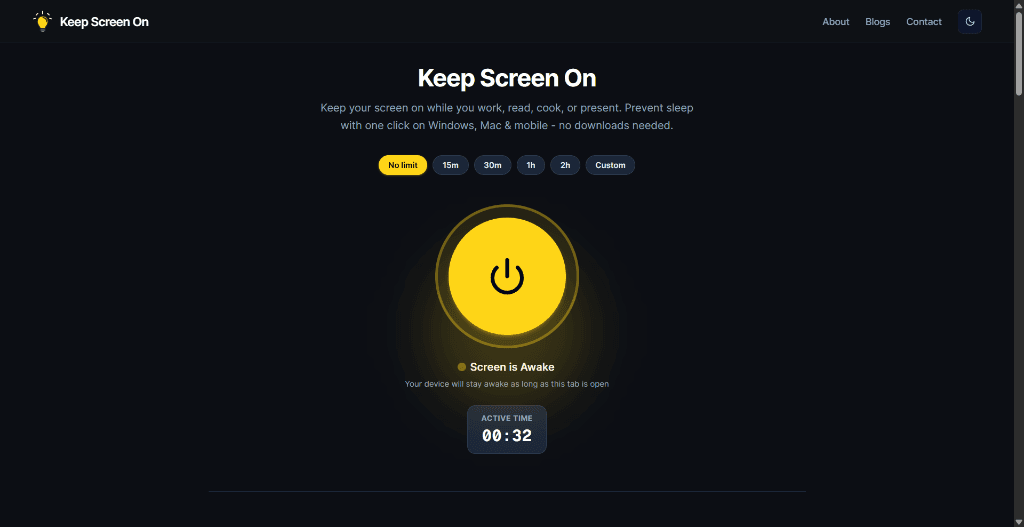
How to use it
This works best when your goal is temporary screen visibility, not guaranteed system-level execution of every application or background process.
Which Windows 11 method should you use?
Think of the choice this way:
You only need the display to stay on
Use Windows screen timeout settings for a persistent change, or Keep Screen On for a temporary browser-based session.
You need the computer itself to stay awake
Use the Windows sleep setting or PowerToys Awake.
You need a timed session without changing your normal power plan
PowerToys Awake is a strong system-level option. For a temporary display-only browser session, Keep Screen On is the simpler no-install choice.
You are leaving a work laptop unattended
Do not treat “keep awake” as a security setting. A screen that stays visible is not the same thing as an unlocked computer being safe to leave unattended. Use the normal Windows lock and security controls when you step away.
Common Windows 11 use cases
Working from home
If you are reading a long document or keeping a reference page visible, a temporary screen-wake session can save you from repeatedly moving the mouse.
Presentations and meetings
For a one-time presentation, a timed browser wake session avoids permanently changing your laptop's normal timeout.
Long development tasks
For local builds, rendering, scripts, or other work that depends on the computer remaining active, focus on the sleep setting or a system-level utility such as PowerToys Awake rather than only keeping the display lit.
Monitoring a dashboard
If the main goal is continuous visual monitoring, keeping the display on is often the relevant setting. You do not necessarily need to change every system sleep behavior.
Does keeping the Windows 11 screen on drain battery?
Yes. A display that remains active uses more power than one that turns off during inactivity.
For longer sessions, consider:
Windows itself recommends screen and sleep timeouts as part of its broader power-efficiency controls. You can read the current guidance in Microsoft's Windows 11 power settings documentation.
One important browser limitation
A web-based screen wake lock is not a magic “never sleep” switch for the entire computer.
The Screen Wake Lock API is intended to keep the screen from dimming or locking while an application needs an active display. Browser and device conditions can still affect whether a wake lock can be acquired or remains active.
That is why it helps to choose the tool based on the actual problem:
screen timeout → screen wake solution
PC sleep → system-level keep-awake solution
security/lock screen → normal Windows security controls
Frequently Asked Questions
How do I stop Windows 11 from turning off my screen?
Go to Settings → System → Power & battery → Screen, sleep, & hibernate timeouts, then increase Turn my screen off after for battery or plugged-in use.
How do I keep my Windows 11 computer awake?
Increase Make my device sleep after in the same Windows settings page, or use Microsoft PowerToys Awake for a temporary keep-awake session.
Does PowerToys Awake keep the screen on?
It can. Microsoft provides a Keep screen on option that can be used with a custom keep-awake mode.
Can a website keep my Windows 11 screen on?
A compatible browser can use the Screen Wake Lock API to request that the display remain active. A website should not be treated as a replacement for Windows system sleep settings.
Should I change my Windows settings or use Keep Screen On?
For a permanent Windows behavior change, use Windows settings. For a temporary, no-install browser session where you mainly need the display to stay visible, Keep Screen On is the more convenient option.
Prevent your screen from dimming right now
Click once to activate browser-based screen wake lock. Free, instant, and works across all devices.