How to Keep Your Mac Screen From Sleeping (Settings, Terminal & Browser)
Learn how to keep your Mac screen on in macOS Sequoia, Sonoma, and Ventura using system settings, the built-in caffeinate command, or zero-install browser tools.
If your Mac display turns off while you are reading documentation, delivering a Keynote presentation, monitoring a live server dashboard, waiting for a long Xcode compilation, or following a recipe, macOS can feel overly aggressive with its power-saving timeouts.
The right solution depends on your goal: do you want a permanent change to macOS energy settings, a temporary terminal keep-awake process, or an instant, zero-install browser tool that keeps your display awake without touching system settings?
Here is a complete breakdown of every method available on macOS Sequoia, Sonoma, and Ventura.
First: Display Sleep vs System Sleep on macOS
Before changing settings, it helps to understand how Apple separates display management from system sleep:
- Turn display off on inactivity: Only turns off the MacBook screen or external monitor backlight to save power. Background processes, audio playback, network transfers, and local server scripts continue running.
- System Sleep: Puts the CPU and memory into low-power states. Background processes, unscheduled tasks, and network connections may be suspended or throttled.
If your problem is simply that the screen dims while you are looking at it without touching the trackpad, you only need a display wake lock.
Method 1: Change macOS System Settings (Built-in)
In modern macOS versions (macOS 13 Ventura, macOS 14 Sonoma, and macOS 15 Sequoia), Apple moved display timeout controls under the Lock Screen menu.
How to adjust display timeout:
- Turn display off on battery when inactive: Choose your desired duration (e.g., *15 minutes*, *30 minutes*, or *Never*).
- Turn display off on power adapter when inactive: Choose a longer interval or *Never* when plugged into a charger.
For Mac desktops (Mac mini, Mac Studio, iMac) or external displays:
Go to System Settings → Energy Saver (or Displays → Advanced) and enable Prevent automatic sleeping when the display is off when plugged into power.
When this method is best:
Use System Settings when you want a permanent, baseline change to your daily Mac experience.
The downside: if you set it to *Never*, you will likely forget to change it back, causing your MacBook battery to drain rapidly when unplugged.
Method 2: Use Keep Screen On in your browser (Instant & Zero-Install)
If you only need your Mac display to stay awake for a temporary task—such as an hour-long webinar, reading a dense PDF, or cooking with your laptop open—you do not need to alter permanent macOS settings or open the Terminal.
You can use Keep Screen On directly in Safari, Chrome, Edge, or Brave.
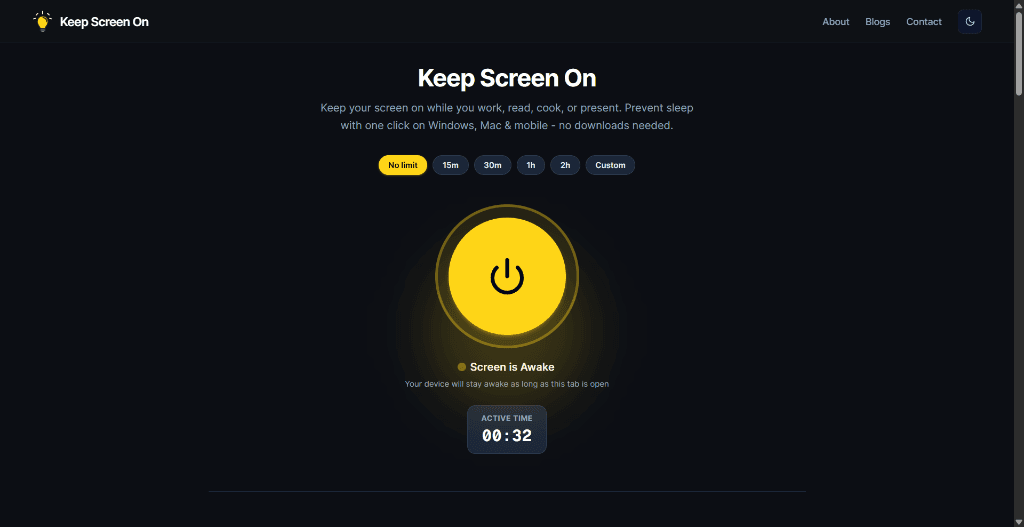
How to keep your Mac screen awake with Keep Screen On:
- No limit: Keeps the display active until you turn it off.
- Preset Timers: Select *15m*, *30m*, *1h*, or *2h*.
- Custom: Set an exact minute timer for presentations or timed reading sessions.
Why use a browser wake lock on macOS?
- Zero Software Installation: No downloading
.dmgfiles, installing Homebrew packages, or granting third-party accessibility permissions. - Automatic Cleanup: As soon as your timer completes or you close the browser tab, macOS immediately reverts to its standard battery-saving schedule.
- Works on All Browsers: Safari 16.4+, Google Chrome, Microsoft Edge, Arc, Brave, and Firefox.
- No Administrator Password Needed: Perfect for corporate or school-managed MacBooks where IT disables changing System Settings.
Method 3: Use the native `caffeinate` Terminal command
macOS includes a powerful, built-in command-line utility called caffeinate that prevents your Mac from sleeping. Because it is part of macOS, no downloads or installations are required.
How to use `caffeinate`:
Open the Terminal app (press Cmd + Space, type Terminal, and hit Enter).
1. Keep the display awake indefinitely:
caffeinate -dThe -d flag tells macOS to prevent the display from sleeping. To stop caffeinate, return to Terminal and press Ctrl + C.
2. Keep the screen awake for a timed duration:
You can specify a duration in seconds using the -t flag:
# Keep screen awake for 1 hour (3600 seconds)
caffeinate -d -u -t 3600
The -u flag simulates user activity, and -t 3600 automatically terminates the command after 60 minutes.
3. Keep your Mac awake until a specific process completes:
If you are running a command-line script, compilation, or render:
caffeinate -d -w 12345Replace 12345 with the Process ID (PID). caffeinate will hold the wake state until that process finishes and exits.
When to use `caffeinate`:
The caffeinate command is ideal for software engineers, sysadmins, and terminal users running long scripts. However, it requires keeping a Terminal window open, remembering command flags, and manually terminating the command.
Method 4: Third-Party Menu Bar Utilities (Amphetamine / Caffeine)
For users who want a menu bar icon to toggle wake state, third-party apps like Amphetamine (available on the Mac App Store) provide deep customization, such as app-specific triggers or display sleep overrides.
Considerations:
- Requires downloading and installing third-party software from the Mac App Store.
- Requires background permissions and ongoing updates across macOS releases.
- Cannot be installed on corporate-managed MacBooks with App Store or installation restrictions.
Which macOS Method Should You Use?
| Need / Use Case | Recommended Solution | Why |
|---|---|---|
| Permanent everyday timeout change | macOS System Settings | Set it once across battery and plugged-in states. |
| Temporary reading, cooking, or presentation | [Keep Screen On](/) (Browser) | Zero install, auto-releasing timer, no settings to undo. |
| Managed work MacBook (No Admin rights) | [Keep Screen On](/) (Browser) | Runs inside browser; respects standard web APIs without MDM conflicts. |
| Developer running a long script or build | `caffeinate` (Terminal) | Native command tied to duration or PID. |
| Complex app-triggered automation | Amphetamine | Granular trigger rules for advanced desktop users. |
Mac Battery & Display Health Tips
Keeping your Mac display powered for long stretches consumes battery and generates heat. Follow these practical recommendations:
- Lower display brightness: Liquid Retina XDR displays consume significant power at peak brightness. Lowering brightness by a few notches during wake lock sessions saves substantial battery life.
- Use timers rather than indefinite sessions: Choose a 30-minute or 1-hour session on Keep Screen On so your Mac can sleep if you step away.
- Connect MagSafe or USB-C power for long builds: If you are rendering 4K video or compiling code, plug into power to avoid unexpected shutdowns.
Frequently Asked Questions
Why does my Mac display turn off even while a video or script is running?
If an app does not request a system power assertion or invoke the Screen Wake Lock API, macOS will follow your default inactivity timeout configured in System Settings.
Does `caffeinate` work if I close my MacBook lid?
By default, closing your MacBook lid triggers clamshell sleep unless your laptop is connected to external power, an external display, and an external keyboard/mouse.
Can Safari keep my Mac display awake?
Yes. Modern versions of Safari (version 16.4 and newer) fully support the standard W3C Screen Wake Lock API used by Keep Screen On.
Does Keep Screen On alter my macOS system preferences?
No. Web wake locks only request a temporary display hold while the browser tab is open and active. When you close the tab, normal macOS power management resumes instantly.
What is the difference between macOS display sleep and full system sleep?
Display sleep only powers off the screen backlight while CPU, background scripts, and network transfers continue. Full system sleep places the CPU into low-power mode, pausing background execution.
Related Guides & Articles
- How to Keep Your Screen On in Windows 11 — The complete Windows 11 counterpart guide for screen and sleep settings.
- Keep Your Screen On While Working From Home — Avoid aggressive lock screen timeouts on managed work MacBooks safely.
- Keep Your Screen Awake While AI Agents Work — Keeping your machine awake during local compiles, builds, and AI automation.
- Web-Based Screen Solutions — Why browser wake locks are the cleanest temporary solution across all devices.
Prevent your screen from dimming right now
Click once to activate browser-based screen wake lock. Free, instant, and works across all devices.