How to Keep Your iPhone & iPad Screen On (Settings & Browser Wake Lock)
Learn how to keep your iPhone and iPad screen on, adjust iOS Auto-Lock settings, and use a zero-install browser wake lock for cooking, reading, and workouts.
If you use your iPhone or iPad to follow cooking recipes in the kitchen, read digital sheet music, monitor fitness workout timers, or read long-form articles, having the screen go black every 30 to 60 seconds is extremely frustrating.
By default, iOS and iPadOS use aggressive Auto-Lock timers to conserve battery life and protect device security.
Here is a complete guide on how to adjust your iOS screen timeout settings permanently, plus how to use a zero-install browser wake lock for temporary tasks without changing your global settings.
Method 1: Adjust iPhone & iPad Auto-Lock in iOS Settings
For a persistent change to your iPhone or iPad display timeout:
- 30 Seconds (Default battery saver)
- 1 Minute / 2 Minutes / 3 Minutes / 4 Minutes / 5 Minutes
- Never (Screen stays awake indefinitely until you press the side power button)
When this method is best:
Use iOS Auto-Lock settings when you want a permanent change for everyday usage (for example, bumping the timeout from 30 seconds to 2 or 3 minutes for more comfortable reading).
Why "Never" is risky:
If you set Auto-Lock to *Never*, you will likely forget to press the side lock button before slipping your iPhone into your pocket or bag. This can lead to accidental pocket-dials, app launches, and rapid battery depletion.
The "Low Power Mode" Problem on iPhone
If you open Settings → Display & Brightness → Auto-Lock and find that the option is grayed out and locked to 30 Seconds, your iPhone is in Low Power Mode.
When Low Power Mode is active (indicated by a yellow battery icon in the top right), iOS enforces a strict 30-second screen timeout to preserve battery life.
How to unlock it:
Method 2: Use Keep Screen On in Safari (Instant & Temporary)
When you only need your iPhone or iPad display awake for a specific activity—such as an hour of cooking dinner, a 45-minute gym workout, or reading sheet music during piano practice—changing your permanent iOS settings is unnecessary.
You can use Keep Screen On directly in Safari, Chrome, or Firefox.
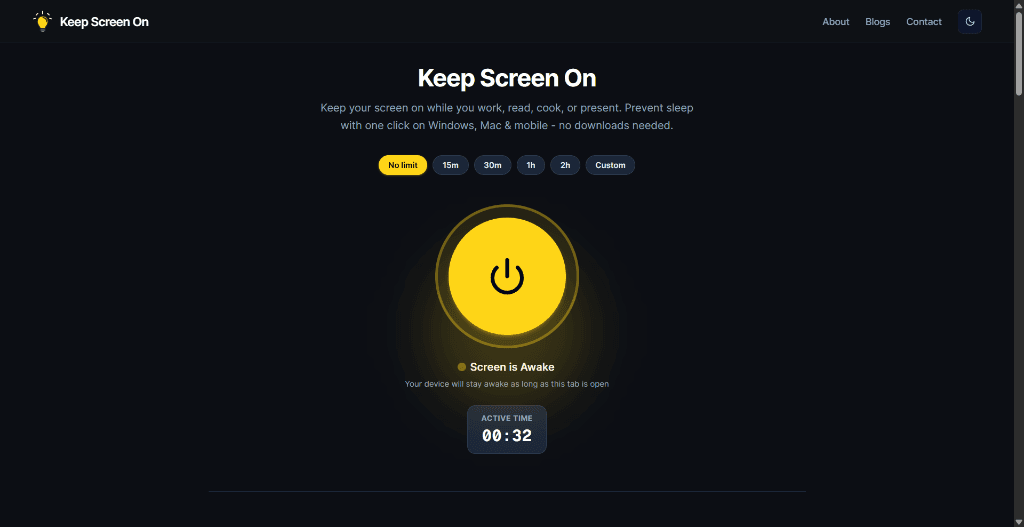
How to use it on iPhone and iPad:
- 15m / 30m / 1h / 2h: Perfect for timed cooking recipes, workouts, or study sessions.
- No limit: Keeps the display active until you turn it off.
- Custom: Set a precise minute timer.
Why use a browser wake lock on iOS?
- Zero App Downloads: No need to install third-party utility apps from the App Store with intrusive subscriptions or ads.
- Automatic Safety: Timed sessions ensure that if you walk away from your iPad or iPhone, the display will automatically lock once the timer expires.
- Official Web Standard: Works on iOS 16.4 and newer using the official W3C Screen Wake Lock API.
- Preserves Normal Settings: Keeps your daily 1-minute or 2-minute auto-lock intact for pocket security.
Method 3: Guided Access (For Kiosks and Single-App Focus)
If you are using an iPad for a retail register, public kiosk, or dedicated classroom display and want the screen locked to a single app without turning off:
To exit Guided Access, triple-click the side button and enter your passcode.
4 Common Mobile Scenarios Where Display Wake Is Essential
1. Hands-Free Cooking & Kitchen Recipes
Touching your iPhone with wet, oily, or flour-covered hands smudges the camera lenses and display oleophobic coating. A browser wake lock keeps your recipe visible from prep to plating.
2. Digital Sheet Music, Tabs & Instrument Rehearsals
Musicians reading chords or lyrics on an iPad cannot stop playing mid-song to tap the glass. Keeping the screen awake guarantees uninterrupted rehearsals and live sets.
3. Workout Timers & Yoga Sequences
Following interval training, HIIT routines, or yoga sequences requires constant visibility of interval countdowns. Screen wake locks eliminate mid-workout lockouts.
4. Reading Long PDFs & E-Books
Reading dense academic articles or books without touching the display every minute ensures a distraction-free reading experience.
Battery & OLED Screen Care on iPhones
Modern iPhones feature vibrant OLED Super Retina XDR displays. To preserve battery health during extended awake sessions:
- Lower Brightness: Reducing screen brightness by 20–30% drastically reduces display power draw while keeping text legible.
- Use Timers: Select a 30-minute or 1-hour session on Keep Screen On so your phone will not stay on indefinitely if you get distracted.
- Plug into MagSafe or Lightning/USB-C: For multi-hour monitoring or kitchen sessions, connect your iPhone to a charger.
Frequently Asked Questions
Does Safari on iPhone support Screen Wake Lock?
Yes. Apple added full support for the W3C Screen Wake Lock API in Safari starting with iOS 16.4 and iPadOS 16.4.
Why is Auto-Lock grayed out on my iPhone?
Auto-Lock is locked to 30 seconds when Low Power Mode is active. Turn off Low Power Mode under Settings → Battery to customize your timeout.
What happens when I switch away from Safari on iOS?
iOS pauses the Screen Wake Lock Sentinel when Safari is placed in the background or minimized. When you switch back to the Keep Screen On tab, the wake lock automatically resumes.
Does keeping my iPhone screen on cause screen burn-in?
Modern iPhone OLED panels include built-in hardware pixel-shifting algorithms. However, for long sessions (hours), lowering display brightness or choosing dark mode is recommended.
Will pressing the physical lock button still lock my iPhone?
Yes. The physical side/power button always overrides any software wake lock immediately.
Related Guides & Articles
- What Is a No Sleep Page? — Learn how web-based screen wake tools work online.
- Keep Your Screen On While Working From Home — Stop aggressive display timeouts on corporate work devices.
- How to Keep Your Mac Screen From Sleeping — macOS Lock Screen settings,
caffeinateCLI, and browser tools. - How to Keep Your Screen On in Windows 11 — Windows 11 power controls, PowerToys Awake, and display settings.
Prevent your screen from dimming right now
Click once to activate browser-based screen wake lock. Free, instant, and works across all devices.