Keep Your Screen Awake While AI Agents Work
Learn when to keep your screen awake while AI agents work, when your computer must stay awake, and how local and cloud agents differ.
AI coding and automation tasks can run for much longer than a normal request. A local agent may edit files, execute commands, run tests, open browser sessions, or wait for another process to finish while you step away from the computer.
But there is an important distinction that gets lost in many “keep your screen awake” guides:
An AI agent does not automatically need your screen to stay on.
The right answer depends on whether the agent is running locally on your computer, in a browser session that depends on an active page, or in a remote/cloud environment.
First: does screen sleep actually stop an AI agent?
Not always.
There are three different things to consider:
These are different layers.
If you are using a cloud-based coding agent, keeping your local screen on may add no value. For example, Cursor's current documentation describes Background Agents as long-running agents that execute in a dedicated remote environment, which means you can close your laptop and check the result later.
For a local agent, the situation is different: the computer hosting the process may need to remain awake.
Local AI agents vs cloud AI agents
Cloud or background agents
A remote agent typically runs on infrastructure provided by the service.
The local laptop is mainly the control and review interface. In this model:
This architecture is increasingly common because cloud agents can execute long-running work independently of the user's local desktop.
Local AI agents
A local agent runs on your own machine or in an environment tied to it.
Examples can include:
For these workflows, the key question is usually not “is my screen on?”
It is:
“Will my computer remain awake long enough for the local process to finish?”
When keeping the screen awake is useful
Keeping the screen visible can still be valuable for local AI work, especially when the workflow depends on an active browser or when you want to monitor progress without interacting with the computer.
Common examples include:
Browser-based AI tools
Some AI workflows happen inside a browser tab. If you are relying on a visible browser session, keeping the screen awake can prevent the display from going dark during the period you are watching the workflow.
That does not guarantee the browser will continue every background task forever. Browser lifecycle rules, tab visibility, battery-saving behavior, and the application's own design still matter.
Browser automation
If an agent is driving websites through a local browser, there may be more moving parts than a simple command-line process.
The browser needs to remain available, the computer may need to stay awake, and the target website may have its own session or authentication requirements.
For these workflows, a screen-wake tool can be useful for the visible session, while the underlying automation still needs to be engineered for reliable background execution.
Long local development tasks
You may launch a local agent to refactor a codebase, run tests, build a project, or iterate through several tool calls.
The important protection here is keeping the computer awake.
If you only keep the display illuminated but Windows or macOS still puts the machine to sleep, the local task can still be affected.
When keeping the screen awake does not help
There are also many situations where the screen is not the bottleneck.
Remote coding agents
When your agent runs in a remote environment, your local display can turn off without stopping the remote work. Check the service's documentation instead of assuming the laptop must remain awake.
Cloud-based research or automation
A cloud workflow can continue independently of your local browser once the task has been accepted by the remote system.
Jobs designed to run unattended
Some systems deliberately separate the agent runtime from the user interface. In those systems, a visible screen is mainly for observation.
The practical takeaway is simple:
Do not use a screen-wake tool to solve a problem that is actually a remote-runtime problem.
How to keep a Windows 11 machine awake for a local AI task
If your local agent really does need the computer to stay active, Windows gives you several choices.
Option 1: Windows power settings
Open:
Settings → System → Power & battery → Screen, sleep, & hibernate timeouts
Then adjust Make my device sleep after for the required power mode.
Microsoft documents these controls in its Windows 11 power settings guide.
This is the simplest system-level solution when you want Windows itself to remain awake.
Option 2: PowerToys Awake
For a temporary coding session, Microsoft PowerToys Awake can keep the computer awake without permanently changing the Windows power plan.
Awake supports timed and indefinite modes, and it has a separate setting for keeping the display on.
This is useful when you know you need the machine active for the next hour or two, then want normal Windows behavior afterward.
Option 3: Keep only the display awake
Sometimes the local process is already designed to survive normally, and your only requirement is being able to keep the current browser or dashboard visible.
In that case, Keep Screen On can provide a temporary browser-based screen wake lock without changing Windows power settings.
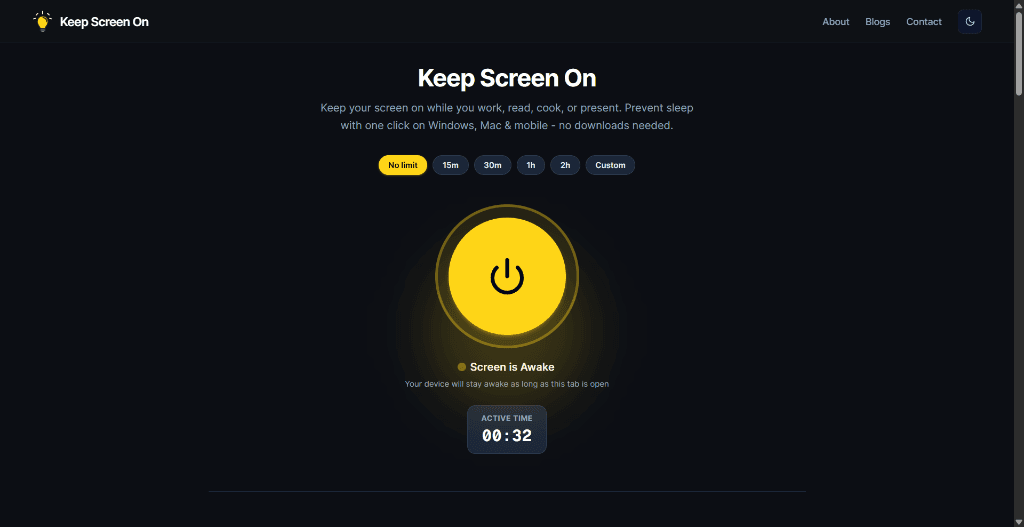
This is best understood as a screen-visibility tool, not a guarantee that every local process or AI agent will continue running.
Why browser wake lock has limits
The browser API behind tools like Keep Screen On is the Screen Wake Lock API.
Its job is narrow: request that the device screen remain awake.
MDN notes that the API is available in secure contexts and that a request can fail, for example because of system conditions such as low power. A lock that has already been granted can also later be revoked.
There are therefore several things an AI workflow can depend on that a screen wake lock does not control:
This is why “keep the screen on” should be treated as one part of a reliable long-running workflow, not the whole workflow.
A better setup for long-running AI work
Before leaving a local AI task unattended, use this simple checklist:
A concrete example
Imagine you ask a local coding agent to make a change across a repository.
It needs to:
If the agent is executing locally, keeping the computer out of sleep may be important.
If you also want to glance at its browser dashboard or terminal output without touching the mouse, keeping the screen awake can improve the experience.
But if you submit the same task to a remote background agent that runs in the cloud, your laptop may be irrelevant after the task starts.
That distinction is the most important part of choosing the right solution.
What about Claude Code, Cursor, Codex, or other AI tools?
The product architecture matters more than the brand name.
A tool can have both local and remote execution modes, or different features that behave differently.
For example:
So before changing your power settings, check where the specific task is executing.
That single question prevents a lot of unnecessary configuration.
Screen awake vs computer awake: the rule to remember
Use this simple decision:
I only need to see the screen → use a screen wake solution.
The local machine must keep processing → keep the computer awake.
The agent runs remotely → your local screen usually does not matter.
I am leaving a machine unattended → think about security, not just wake state.
Frequently Asked Questions
Does an AI agent stop when my screen turns off?
Not necessarily. A screen turning off is different from the computer going to sleep, and a remote agent may continue running independently of the local computer.
Do cloud AI agents need my laptop to stay awake?
Usually not when the agent is actually running in a remote environment. Always check the specific service's execution model.
Does keeping my screen on keep a local AI agent running?
Not by itself. If the local computer can still enter sleep, the underlying process can be affected even though the browser screen is being kept awake.
Can a browser wake lock keep an AI agent running in a background tab?
Do not rely on it for that. Screen Wake Lock is designed to keep the screen active, and browsers can apply visibility and lifecycle rules to web pages.
What is the best way to keep a Windows PC awake during a long AI task?
For system-level behavior, use Windows power settings or PowerToys Awake. Use Keep Screen On when the specific need is a temporary browser-based screen wake session.
Should I leave my AI coding session running overnight?
Only after you understand where the task runs, what happens if the computer sleeps or the network drops, how the agent handles failures, and whether the machine contains sensitive information. A short test run is a safer way to validate the setup first.
Prevent your screen from dimming right now
Click once to activate browser-based screen wake lock. Free, instant, and works across all devices.