Keep Your Screen On While Working From Home: Stop Display Timeouts
Learn how to keep your screen awake while working from home without violating corporate IT policies, installing unauthorized software, or jiggling your mouse.
Working from home has many advantages, but aggressive corporate laptop screen timeouts are not one of them.
If your work computer is managed by your company's IT department, your screen may lock automatically after just 3 to 5 minutes of inactivity.
While this security policy makes sense in a busy open office, it becomes a major productivity hurdle at home:
- Your screen locks in the middle of reading a 40-page contract or technical architecture doc.
- Your second monitor goes black while you are referencing data during a client call.
- Your dashboard or build monitor shuts off while you are waiting for a deployment.
- You have to re-enter a 16-character complex password and 2FA prompt ten times a day.
Here is how to solve the work-from-home display timeout problem safely, without installing unapproved software or violating corporate IT policies.
Why Corporate Laptops Lock So Quickly
Enterprise IT teams configure centralized Mobile Device Management (MDM) or Windows Group Policies (GPO) that enforce strict inactivity timers (typically 3 to 15 minutes) across all company-issued devices.
These policies exist to comply with security standards like SOC 2, HIPAA, and ISO 27001. In an office setting, auto-lock prevents passersby from viewing sensitive customer data on an unattended workstation.
However, these rules rarely differentiate between an unattended laptop and an employee who is actively reading on screen without moving their mouse.
The Risks of Mouse Jigglers and Unauthorized Software
When workers get frustrated by constant screen locking, they often turn to quick hacks that can backfire:
1. Third-party software utilities (`.exe` or `.dmg` files)
Downloading unauthorized keep-awake utilities from random websites directly violates IT Acceptable Use Policies. Enterprise Endpoint Detection and Response (EDR) software (like CrowdStrike or Microsoft Defender for Endpoint) regularly flags and blocks unknown background executables, which can trigger automated security alerts to your IT security team.
2. Hardware USB mouse jigglers
USB mouse jigglers that plug into a USB port can be flagged by IT asset-tracking systems and hardware audit logs as unauthorized external HID peripherals.
3. Physical hacks (analogue watches, tape, fans)
Balancing your optical mouse on an analogue watch or putting a weight on a key is cumbersome, messy, and impractical.
There is a cleaner, safer approach: browser-native screen wake locks.
The Safe Solution: Browser-Based Screen Wake Lock
Instead of installing software or plugging in suspicious hardware, you can keep your display active using standard web browser features.
Keep Screen On utilizes the official W3C Screen Wake Lock API implemented natively in modern browsers like Google Chrome, Microsoft Edge, Mozilla Firefox, and Apple Safari.
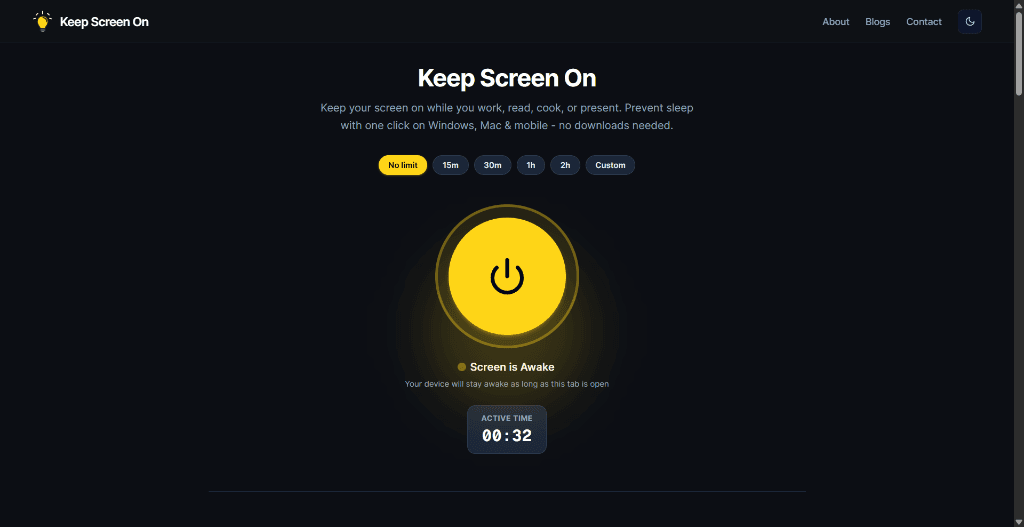
How to use Keep Screen On for WFH:
- 15m / 30m / 1h / 2h: Perfect for meetings, reading sessions, or webinars.
- No limit: Keeps the display active throughout your active focus block.
- Custom: Set an exact minute timer.
Why this is the best method for remote work laptops:
- No Admin Rights Required: It runs entirely inside standard web browsers without needing administrative privileges or software approval.
- Zero Software Footprint: No installation, no background agents, no registry tweaks, and no browser extension permissions.
- Controlled & Timed: You can set a 30-minute timer for a specific reading session so your computer still locks if you leave your desk at the end of the day.
- Cross-Platform: Works on Windows 10/11 ThinkPads, Dell Latitudes, MacBooks, and Chromebooks.
4 Common WFH Scenarios Where You Need Display Wake
1. Reading long documentation and spreadsheets
When analyzing multi-page financial models, design documents, or code reviews, you might spend several minutes studying a single paragraph or formula without touching the trackpad. A browser wake lock prevents the display from snapping to black mid-thought.
2. Company webinars and silent meetings
During company-wide all-hands, training sessions, or Zoom webinars where you are primarily listening, you may not interact with the mouse for 30 minutes. Keeping a wake lock active ensures your screen remains on without requiring constant mouse wiggles.
3. Dual-monitor reference displays
In a multi-monitor home desk setup, you often keep reference materials, ticketing queues, or chat channels on a side monitor while working on your primary screen. A browser wake lock prevents your secondary monitor from dimming.
4. Deployments, builds, and data transfers
Waiting for a heavy local build, cloud sync, or large file download? Keeping your display awake lets you glance over to check the progress bar without having to unlock your PC every few minutes.
Important Security Hygiene for Remote Workers
While keeping your screen on during active reading is convenient, always practice good remote work security:
- Manually lock your computer when you step away: When you leave your desk for lunch, coffee, or errands, press Win + L (on Windows) or Cmd + Ctrl + Q (on Mac) to lock your machine immediately.
- Use timers rather than indefinite sessions: Selecting a 30-minute or 1-hour timer ensures your screen will automatically revert to standard corporate security behavior if you forget to stop the session.
- Do not use wake locks to disguise absence: A screen wake tool is meant for legitimate visibility while you are actively working, reading, and monitoring—not for bypassing workplace attendance policies.
Frequently Asked Questions
Can my company's IT department see that I am using Keep Screen On?
Keep Screen On is a standard HTTPS website running inside your existing web browser. It does not install background processes, access internal network resources, or modify system files.
Does Keep Screen On prevent my laptop from sleeping when closed?
No. Hardware events like closing your laptop lid or pressing the physical power button always override browser wake locks.
Why does the wake lock turn off when I minimize the browser?
Browsers automatically pause the Screen Wake Lock API when a tab is hidden or minimized to prevent accidental background battery drain. Keep the tab open in a visible window to maintain continuous illumination.
How does this compare to Windows power settings?
On managed enterprise laptops, IT policies usually lock down Windows power options in Control Panel or Settings. Keep Screen On works within standard browser capabilities without requiring administrative permissions.
Is a browser wake lock safer than a hardware mouse jiggler?
Yes. Hardware USB jigglers can be detected by IT endpoint management as unauthorized external devices, whereas a browser wake lock is a standard web API (identical to watching an embedded video).
Related Guides & Articles
- How to Keep Your Screen On in Windows 11 — Master Windows power settings, sleep timeouts, and PowerToys Awake.
- How to Keep Your Mac Screen From Sleeping — Mac System Settings,
caffeinateCLI, and zero-install options. - Keep Screen Awake Online — Instant zero-install guide for cooking, reading, and meetings.
- Web-Based Screen Solutions — Cross-platform display wake lock technical guide and best practices.
Prevent your screen from dimming right now
Click once to activate browser-based screen wake lock. Free, instant, and works across all devices.