Keep Screen Awake Online: The Zero-Install Way to Stop Display Sleep
Discover how a web-based screen awake tool prevents your display from dimming during cooking, presentations, AI code generation, and music practice without touching system settings.
We have all been there: you are in the middle of rolling dough or chopping vegetables with messy hands, and your tablet screen goes dark right when you need to read the next step. Or you prompt an AI coding model with a complex refactoring task, step away to grab coffee, and come back to find your computer locked, wondering if the generation succeeded or stalled.
These daily interruptions are frustrating, but changing your permanent operating system power settings is rarely the right answer. That is where a dedicated keep screen awake website comes in.
What is a keep screen awake website?
A keep screen awake website is a free, web-based utility that temporarily prevents your phone, tablet, laptop, or desktop monitor from falling asleep or dimming.
Unlike desktop software that requires downloading .exe or .dmg installers, or adjusting system-wide control panels, a web tool runs straight in your standard browser. You navigate to Keep Screen On, press one button, and your screen stays illuminated for as long as you specify.
Key scenarios where you need your screen awake
1. Cooking and following recipes
When cooking dinner or baking bread, your hands are frequently wet or covered in flour. Tapping or swiping the screen every two minutes gets food all over your screen and risks smudging camera sensors. Activating a browser wake lock keeps your recipe instructions constantly in sight from start to finish.
2. Monitoring AI code generation & long builds
Developers and designers frequently trigger long-running operations—such as multi-file AI prompt generations, large Docker image builds, or video renders. If your screen times out, it is difficult to quickly glance over and monitor progress. A browser awake tab keeps your status dashboard visible without touching the keyboard.
3. Slide decks & conference presentations
Nothing disrupts the momentum of a live workshop or client pitch like a monitor abruptly going pitch black. Running a background wake lock ensures that your presentation notes, dashboard metrics, or demonstration displays remain crisp and visible throughout your meeting.
4. Sheet music, lyrics & instrument practice
Musicians who read chords, tablature, or digital sheet music on an iPad or laptop cannot afford to stop playing midway through a song just to tap the glass. Keeping your screen awake ensures continuous, uninterrupted reading during rehearsals and live performances.
5. Workout routines and interval timers
When following high-intensity interval training (HIIT), yoga sequences, or timer apps, having your phone go to sleep mid-set breaks your concentration. A browser keep-awake session guarantees your workout timer remains in view across every set.
Why use a website instead of adjusting system power settings?
Operating systems like Windows, macOS, iOS, and Android let you adjust display timeout in settings, but doing so creates several common problems:
The web-based advantage
How the technology works: The Screen Wake Lock API
Modern keep-awake websites are powered by the official W3C Screen Wake Lock API.
Here is how the process works behind the scenes:
Is it safe?
Yes. The Screen Wake Lock API is an established, privacy-friendly web standard (similar to how web video players keep screens awake during movie streaming). It does not access your personal data, require account sign-ins, or alter device firmware.
How to use Keep Screen On
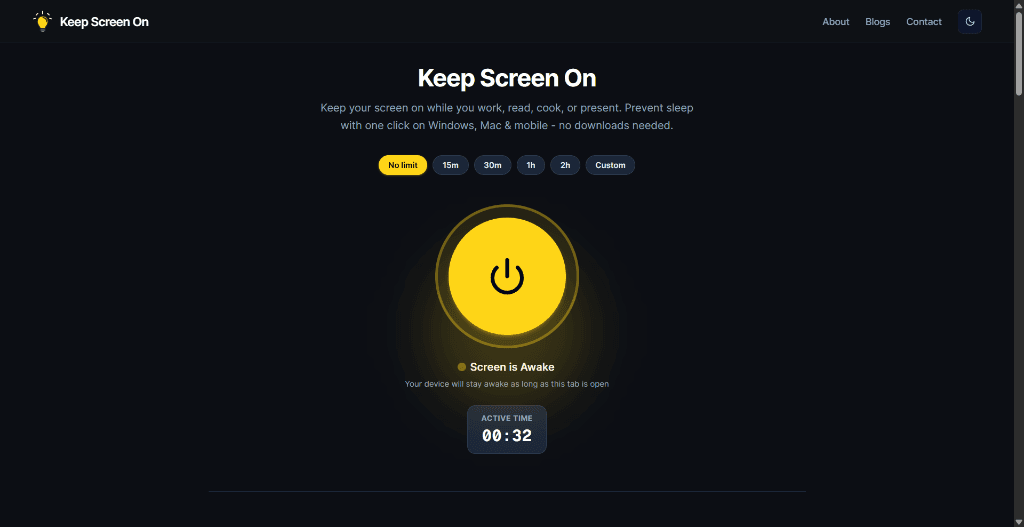
Getting started takes just three seconds:
Practical tips for the best experience
Frequently Asked Questions
Does keeping my screen awake drain battery?
Yes. Any display that remains lit consumes power. However, using a browser tool with automatic timer options (like 30 minutes or 1 hour) ensures your screen only stays on while you need it, preventing accidental overnight battery drain.
What happens when I close the website tab?
The wake lock is immediately revoked by the browser. Your device instantly returns to its standard sleep and lock schedule without requiring any manual reset.
Does this work on mobile phones and tablets?
Yes. The tool runs on iOS Safari, Android Chrome, iPadOS, and all modern mobile web browsers.
Will pressing the physical power button still lock my device?
Yes. Physical hardware actions and manual locks always take precedence. A wake lock prevents automatic timeouts—it does not prevent manual locking.
Prevent your screen from dimming right now
Click once to activate browser-based screen wake lock. Free, instant, and works across all devices.