How to Keep Your Computer Awake: Windows, Mac, and Browser Guide
Complete guide on how to keep your computer awake on Windows 11/10 and macOS, using built-in power settings, terminal commands, and zero-install browser tools.
Keep your screen illuminated while you read, cook, or run tasks.
Whether you are downloading large files, rendering a 4K video project, compiling code, running a local machine learning script, giving a slideshow presentation, or monitoring a live trading dashboard, having your computer suddenly go to sleep is one of the most frustrating interruptions.
When a computer sleeps, CPU processing halts, network transfers disconnect, and background tasks pause.
This guide covers every proven method to keep your PC or Mac awake-from permanent operating system settings and command-line utilities to instant, zero-install browser wake locks that work without administrator privileges.
First: Display Sleep vs. Computer Sleep (The Critical Distinction)
Before adjusting settings, it is essential to understand the difference between screen sleep and system sleep:
| Mode | What Happens | Background Tasks | Network Connection |
|---|---|---|---|
| Display Sleep (Screen Off) | The monitor turns off or goes black to save power and prevent panel wear. | Keep running at full speed. | Remains active. |
| System Sleep (Standby/Suspend) | The CPU enters low-power state, RAM is refreshed, fans spin down. | Paused completely. | Disconnected or paused. |
| Lock Screen | User session is locked behind a password/PIN for security. | Continue running (unless sleep triggers). | Remains active. |
- If you just need the screen to stay visible while you read, cook, or present: use a browser wake lock.
- If you need a long rendering or terminal script to complete: you must prevent system sleep.
---
Method 1: The Instant, Zero-Install Browser Solution (All Devices)
If you need your screen and computer to stay awake temporarily-and you do not want to dig through complex system settings or install unverified third-party software-a browser-based Screen Wake Lock is the fastest and cleanest option.
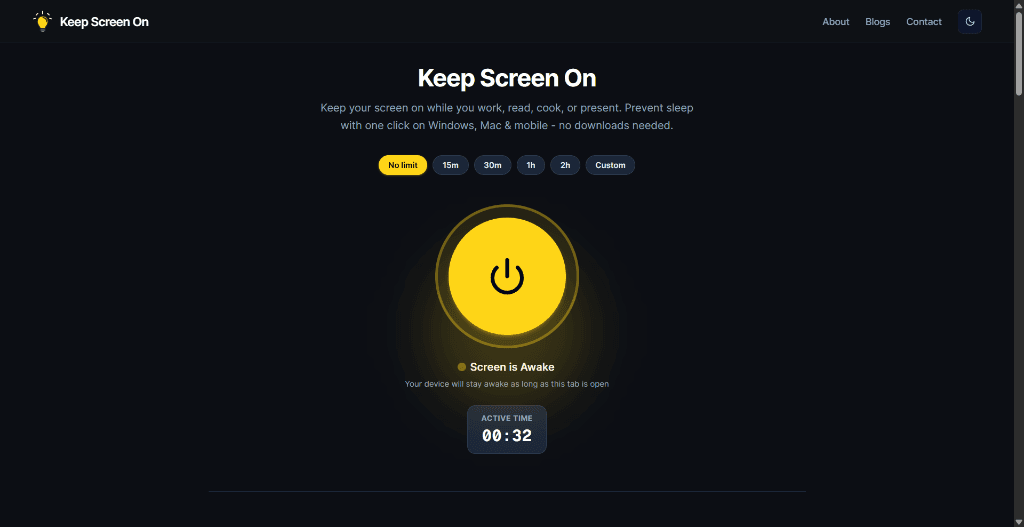
Why use a browser wake lock?
- No Downloads or Software: Runs directly in Google Chrome, Microsoft Edge, Safari, Arc, Brave, or Firefox.
- Works on Restricted Work PCs: Because it runs in your standard web browser, you do not need IT administrator rights or elevation.
- Configurable Timers: Choose from 15 minutes, 30 minutes, 1 hour, 2 hours, or indefinite wakefulness.
- Automatic Cleanup: As soon as your timer completes or you close the browser tab, your computer returns to its normal power-saving schedule.
How to use Keep Screen On:
---
Method 2: How to Keep Your Windows 11 & 10 PC Awake
Windows gives you granular control over screen timeouts and system sleep states.
Option A: Adjust Windows Power & Sleep Settings (Permanent)
Win + I).- *When plugged in, turn off my screen after:* Select
Neveror a longer time (e.g., 2 hours). - *When plugged in, put my device to sleep after:* Select
Never.
Never.Option B: Microsoft PowerToys Awake (Official Microsoft Tool)
If you frequently toggle between needing your PC awake and allowing it to sleep, Microsoft's official PowerToys Awake utility is the best native companion:
---
Method 3: How to Keep Your Mac Awake (macOS Sequoia, Sonoma & Ventura)
macOS handles display and system sleep separately, especially on Apple Silicon (M1/M2/M3/M4) MacBooks.
Option A: macOS System Settings
Never (or your preferred duration).Option B: Native macOS Terminal (`caffeinate` Command)
macOS has a powerful built-in command-line tool called caffeinate that requires no third-party installations:
# Keep both system and display awake indefinitely
caffeinate -d

# Keep computer awake for exactly 2 hours (7200 seconds)
caffeinate -d -u -t 7200

# Keep computer awake until a specific terminal process finishes
caffeinate -d -w <PID>
Press Ctrl + C in the Terminal window whenever you want to release the wake lock and return to standard power settings.
---
Method 4: How to Keep a Laptop Awake with the Lid Closed (Clamshell Mode)
If you are connecting your laptop to an external monitor, keyboard, and mouse, you may want to close the lid without the computer going to sleep.
- On Windows 11/10:
Win + R, type control, and press Enter to open the classic Control Panel.- On macOS (MacBook):
---
Comparison: Which Method Should You Choose?
| Scenario | Best Method | Why |
|---|---|---|
| Reading documentation or giving a presentation | Keep Screen On | Zero install, instant toggle, screen stays lit. |
| Managed work laptop with locked IT settings | Keep Screen On | 100% browser-based, no admin rights required. |
| Long video renders or overnight file downloads | OS Power Settings (Never) | Prevents CPU sleep even if display turns off. |
| Quick terminal script or software build (Mac) | Terminal caffeinate | Built-in CLI, automatically exits when finished. |
| Daily power user switching modes frequently (PC) | Microsoft PowerToys Awake | System tray toggle with flexible presets. |
---
Frequently Asked Questions
Does keeping my computer awake drain the battery faster?
Yes. Keeping the screen illuminated and the CPU in an active state consumes more energy than sleep mode. When running on battery power, use a timed session (e.g., 30–60 minutes) or lower the screen brightness.
Will my computer sleep if a file is downloading in the background?
Most modern browsers and operating systems will attempt to keep the network active during downloads, but aggressive OS sleep timers can still suspend the system if no user input is detected. Setting your sleep timer to Never or activating a keep-awake tool guarantees the download finishes uninterrupted.
Can a browser tab really keep my computer from sleeping?
Yes. Modern web browsers support the official W3C Screen Wake Lock API. When you activate a tool like Keep Screen On, the browser requests a system-level wake lock sentinel from the operating system kernel, preventing the display from dimming or locking.
Is it safe to use physical mouse jigglers or unauthorized keep-awake apps on a work PC?
Physical USB mouse jigglers and unapproved third-party .exe executables can trigger IT security endpoint alerts (EDR/MDM monitoring). A standard browser-based wake lock uses native web standards and does not install unauthorized background binaries.
How do I stop my computer from sleeping without changing my permanent settings?
Use a temporary browser wake lock at Keep Screen On. When your session or meeting is over, simply close the browser tab to immediately restore your default system power-saving timeouts.
---
Related Guides & Articles
- How to Keep Your Screen On in Windows 11 - Complete walkthrough of Windows 11 screen and sleep settings.
- How to Keep Your Mac Screen From Sleeping - macOS Lock Screen settings,
caffeinateCLI, and browser tools. - Keep Your Screen On While Working From Home - Stop aggressive display timeouts on corporate work devices.
- What Is a No Sleep Page? - Understand how browser-based wake lock pages work under the hood.
Prevent your screen from dimming right now
Click once to activate browser-based screen wake lock. Free, instant, and works across all devices.