How to Keep Your Screen Awake Without Touching It: 5 Easy Ways (PC, Mac, Mobile & Web)
Learn how to keep your screen awake and leave your display on across Windows, Mac, iPhone, Android, and web browsers without constantly touching your mouse or screen.
Keep your screen illuminated while you read, cook, or run tasks.
We have all been there: you are in the middle of reading a complex technical document, following a cooking recipe with messy hands, presenting slides during a virtual meeting, observing an AI agent run, or monitoring a real-time trading chart-and your screen suddenly dims and shuts off.
Constantly wiggling your mouse, tapping your trackpad, or tapping your phone screen every two minutes is distracting and tedious.
Fortunately, you do not have to put up with aggressive auto-lock timers. Whether you want a quick zero-install solution that works right in your browser or need to configure permanent operating system settings, here are 5 proven ways to keep your screen awake and leave your display on without touching a thing.
---
Method 1: The Zero-Install Browser Wake Lock (Fastest for All Devices)
If you need a quick, temporary way to keep your screen awake-especially on school or corporate work laptops where you cannot install software or change administrative group policies-a browser-based screen wake lock is by far the easiest method.
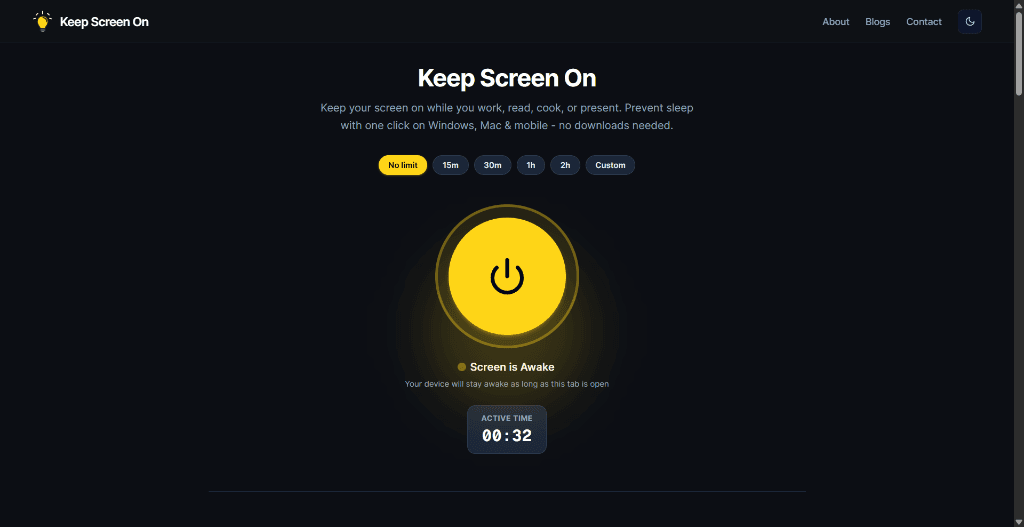
Modern web browsers support the official W3C Screen Wake Lock API. When activated, the web page requests a system-level keep-awake Sentinel from your operating system, preventing the display from dimming or locking.
Why this is the best option for most people:
- No Downloads or Extensions: Works in Google Chrome, Safari, Edge, Firefox, Brave, and Arc.
- No IT Admin Rights Needed: Because it runs within standard web permissions, you do not need administrator elevation.
- Flexible Timers: Set a session for 15 minutes, 30 minutes, 1 hour, 2 hours, or leave it on indefinitely.
- Zero Cleanup: Simply close the browser tab when you are done, and your device instantly returns to its normal power-saving schedule.
How to use Keep Screen On:
---
Method 2: How to Keep Screen Awake on Windows 11 & Windows 10
If you use a Windows PC and want to permanently extend or disable your screen timeout:
Step-by-Step Settings:
Win + I to open Windows Settings.- *When plugged in, turn off my screen after:* Select
Neveror a longer timeframe (e.g., 1 hour). - *When on battery power, turn off my screen after:* Keep this at a moderate duration (e.g., 10–15 minutes) to protect your battery life.
Power User Alternative: Microsoft PowerToys Awake
If you frequently switch between wanting your PC awake and letting it sleep, install Microsoft's official free utility, PowerToys Awake. It places a coffee cup icon in your taskbar system tray that lets you toggle between *Keep awake indefinitely* and *Keep awake for a time limit* with two clicks.
---
Method 3: How to Keep Screen Awake on Mac (macOS Sequoia, Sonoma & Ventura)
Apple MacBooks and desktop Macs feature strict display energy savings by default.
Step-by-Step Settings:
Never or your desired timeout.Native Terminal Command (`caffeinate`):
If you do not want to alter permanent system settings, macOS includes a built-in terminal command called caffeinate:
# Keep your Mac screen awake until you press Ctrl + C
caffeinate -d

# Keep screen awake for 1 hour (3600 seconds) and automatically exit
caffeinate -d -u -t 3600
---
Method 4: How to Leave Screen Awake on Mobile (iPhone, iPad & Android)
Mobile screens turn off much faster than laptops (often after just 30 to 60 seconds). Here is how to keep them on:
On iPhone and iPad (iOS & iPadOS):
On Android:
---
Method 5: How to Keep a Second Monitor Awake (Dual Screen Setups)
A common issue in dual-monitor setups is that an external or secondary monitor turns off or goes black unexpectedly while you are actively working on your primary screen.
Why does this happen?
- Some monitors feature aggressive built-in hardware auto-sleep or Eco Mode timers that activate when no mouse movements occur directly on that specific screen.
- Windows or macOS may sleep secondary displays during full-screen applications or specific power plans.
The Fix:
Place a browser window with Keep Screen On active on your secondary monitor. Because the browser tab requests a system-wide display wake lock, both your primary and secondary displays will remain continuously active and illuminated.
---
Comparison of the 5 Methods
| Method | Best For | Setup Time | Admin Rights Required? | Auto Resets When Done? |
|---|---|---|---|---|
| [Keep Screen On](https://keepscreenon.dev/) | Reading, cooking, presentations, work laptops | 5 seconds | No | Yes (close tab) |
| Windows Power Settings | Permanent home desktop setup | 1 minute | Maybe | No (manual revert) |
| Mac `caffeinate` | Developers and terminal users | 10 seconds | No | Yes (Ctrl + C) |
| Mobile Auto-Lock | Dedicated tablet recipe/dashboard screens | 30 seconds | No | No (manual revert) |
| Microsoft PowerToys | Windows daily power users | 3 minutes | Yes | Yes (tray toggle) |
---
Frequently Asked Questions
Does keeping my screen awake damage my display panel?
No. Modern LCD, LED, and IPS monitors are not damaged by remaining illuminated for extended periods. On OLED displays (such as modern iPhones and high-end laptops), keeping a static bright image for days could theoretically cause image retention, but using normal brightness or dark mode completely eliminates this concern.
How do I leave my screen on while reading or cooking?
Open Keep Screen On on your laptop, iPad, or tablet. Set a 1-hour timer and click activate. Your recipe or PDF will stay completely readable without you needing to touch the screen with messy or wet hands.
Can I keep my screen awake without changing my computer's permanent settings?
Yes. That is the exact purpose of a web-based Screen Wake Lock. When you activate Keep Screen On, it holds a temporary session lock. As soon as you close the browser tab or your timer expires, your computer immediately resumes its normal power-saving timeouts.
Why does my screen still go to sleep when I'm watching or monitoring a dashboard?
If your browser or operating system does not detect active mouse or keyboard inputs, it treats the session as idle unless an application explicitly requests a wake lock. Visiting Keep Screen On provides that explicit wake lock instruction to the OS.
Is a web wake lock safer than a mouse jiggler on a work computer?
Yes. USB mouse jigglers and third-party .exe jiggler scripts generate artificial hardware inputs that enterprise security monitoring tools (EDR and MDM systems) regularly detect and flag. Keep Screen On is a lightweight website that uses standard web APIs, requiring no software installations or fake mouse movements.
---
Related Guides & Articles
- How to Keep Your Computer Awake - Complete OS and hardware guide for Windows and macOS.
- How to Keep Your Screen On in Windows 11 - Deep-dive into Windows 11 power, sleep, and lock settings.
- How to Keep Your Mac Screen From Sleeping - macOS Lock Screen settings and the terminal
caffeinatecommand. - Keep Your Screen On While Working From Home - Stop aggressive display timeouts on corporate work devices.
Prevent your screen from dimming right now
Click once to activate browser-based screen wake lock. Free, instant, and works across all devices.